
The intended group
Check the convoy name and participant list before starting. When you belong to several convoys, choosing the right one prevents sharing into the wrong live drive.
Navra practical guide / Reviewed 5 October 2026
Prepare a trip convoy, start its live session and choose location-sharing mode in Navra. Joining is free and live position updates require an internet connection.
The practical fit
A convoy is the group attached to a drive. A live session provides the latest shared positions for participating drivers. Accepting a convoy invitation is not the same as choosing to share your location.
Prepare the trip, participants and driver roles before departure. Open the GPS map’s Convoy control to review sharing, then select the intended convoy in the live controls. If you have no convoy yet, the app directs you to Trips first.
For Liwa or Sweihan, agree the communication plan separately from the live map. A phone may have a GPS fix while lacking the internet connection required to send that position to the others.
What it solves
Check the convoy name and participant list before starting. When you belong to several convoys, choosing the right one prevents sharing into the wrong live drive.
Each driver chooses a sharing mode. Opening the convoy controls or accepting an invitation does not by itself grant ongoing location sharing.
Review whether your location is sharing, paused or waiting for an update. A displayed dot may be an older position when connectivity is interrupted.
Stop sharing for your own phone when appropriate. The host can end the live session for everyone when the drive is over.
Live convoy controls
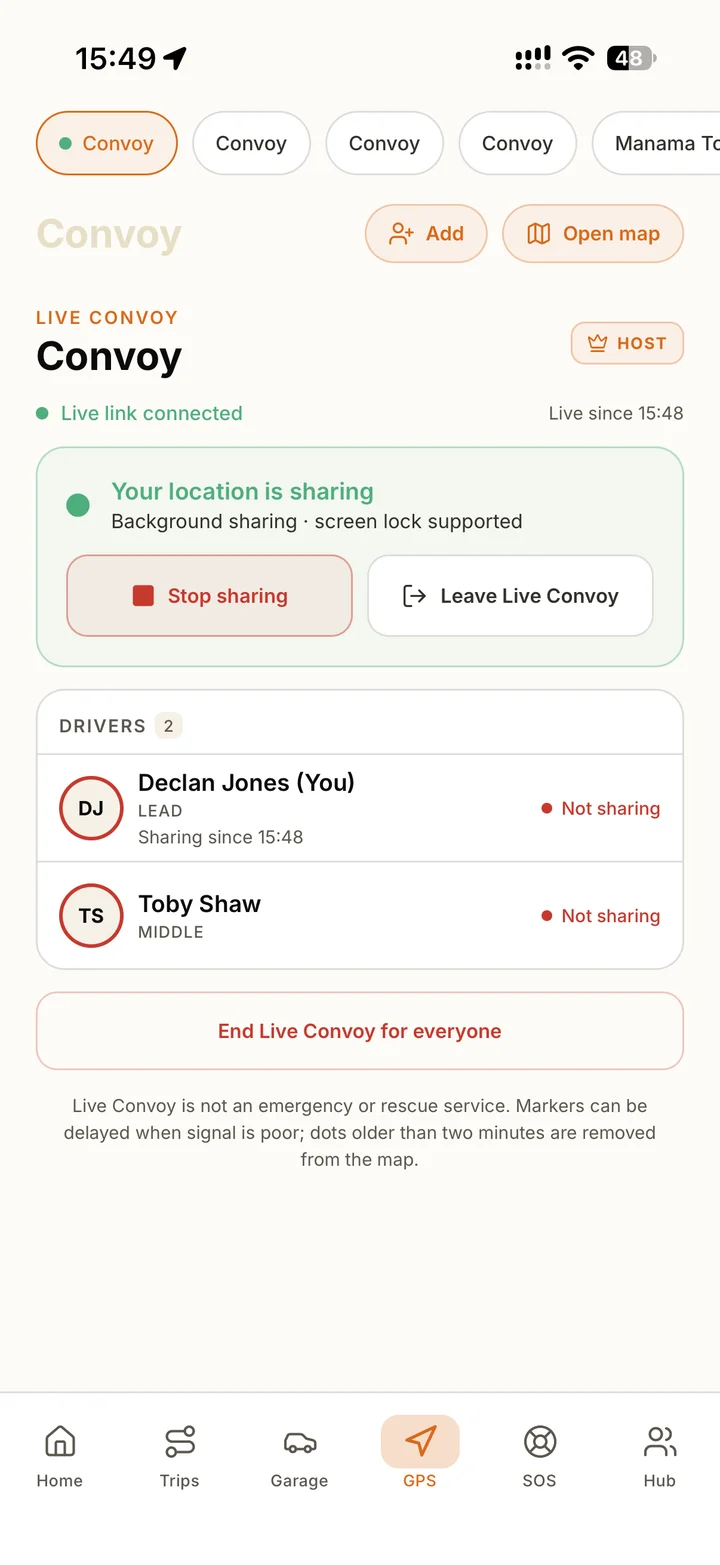
The convoy screen presents the participating drivers and sharing controls. The main map displays their available positions; a live session does not remove the need for a radio or other agreed communication plan.
How it fits
Open or organise the trip in Trips and confirm the invited drivers. Set the convoy roles with the organiser so participants know the lead and sweep before moving.
From GPS, use Convoy to review sharing and open the live convoy controls. Select the correct convoy when more than one is available.
The host selects Start Live Convoy. Invited drivers accept the convoy invitation and, once the live session is running, choose Join and share location. Joining another host’s live convoy is free.
While Navra is open shares only while the app remains open and stops when the phone locks. Keep sharing in background supports a locked screen with the required location permission and uses more battery.
While stopped and connected, use Open map and confirm the intended participants appear with sharing enabled. Resolve permission, connection or waiting states before relying on the display.
Use Stop sharing to stop your own live updates, or Leave Live Convoy when leaving. The host uses End Live Convoy for everyone when the drive is complete.
Straight answers
Joining another driver’s hosted convoy is free. Current hosting availability and plan details are shown in the app. Live position updates require an internet connection.
No. Convoy membership and location-sharing consent are separate. Review and choose the sharing mode before your phone starts sending live positions.
While Navra is open is the foreground sharing mode and stops when the phone locks. Keep sharing in background requires the appropriate permission and uses more battery.
Live updates need an internet connection. Your GPS may still determine your own position, but other drivers cannot receive fresh live updates without connectivity.
Select Stop sharing for your own location updates or Leave Live Convoy to leave the session. The host can select End Live Convoy for everyone.
Download Navra for iPhone or Android. Check hosting availability in the app, set up the trip and sharing choices before the drive, and invite drivers to join free.